Skip to the content
How to resend estimates?
Go to ‘Manage Estimate’, >> ‘Estimate Action’, >> ‘Resend estimate’.
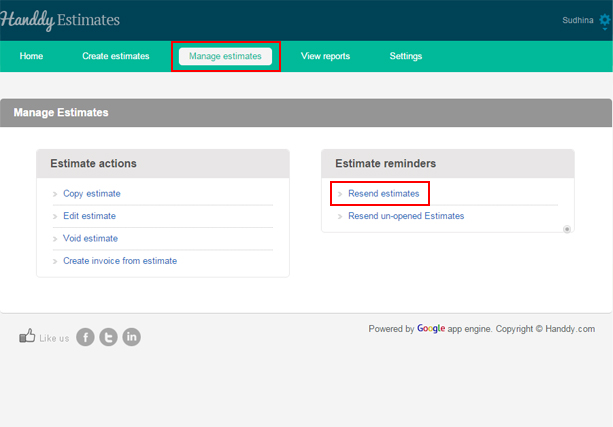
List of estimates that you created will be displayed
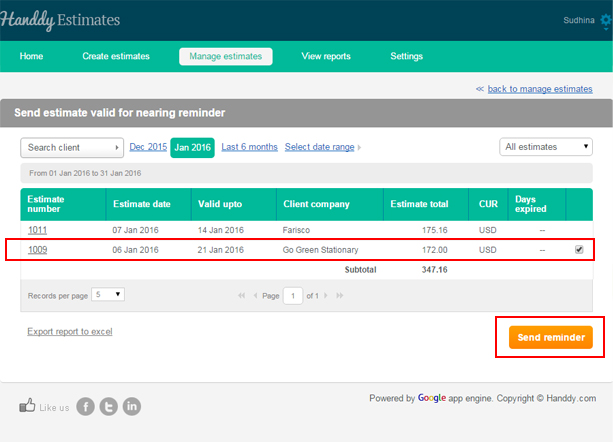
You can view estimates through time period option or ‘Search client’ option
From the list select the estimate that you wish to resend.
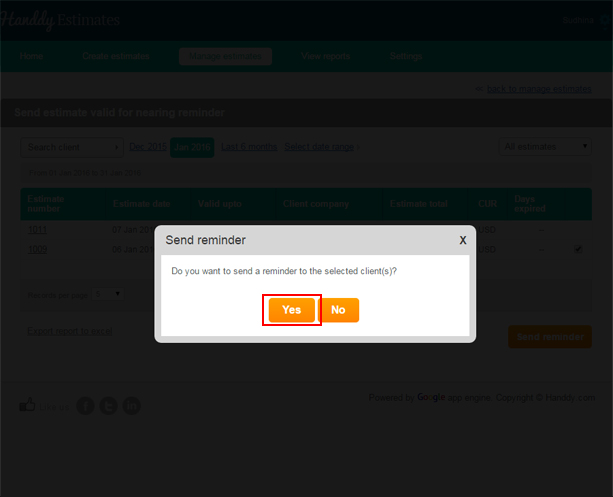
- A dialogue box opens asking do you want to send a reminder to the selected client(s)
- Click ‘yes’
- The estimate will be resent.
How do I create invoice from estimate?
Go to ‘Manage Estimate’, >> ‘Estimate Action’, >> ‘Create invoice from estimate’.
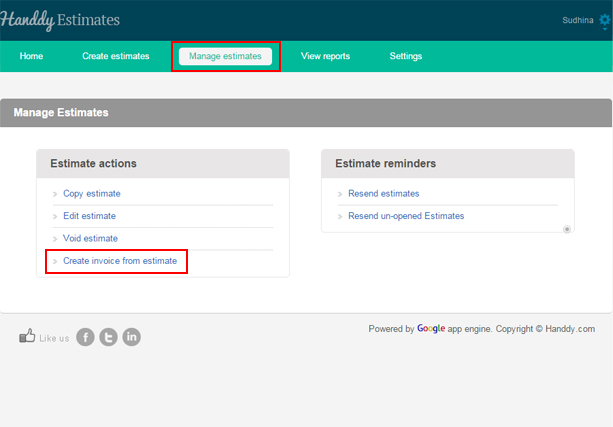
List of estimates that you created will be displayed
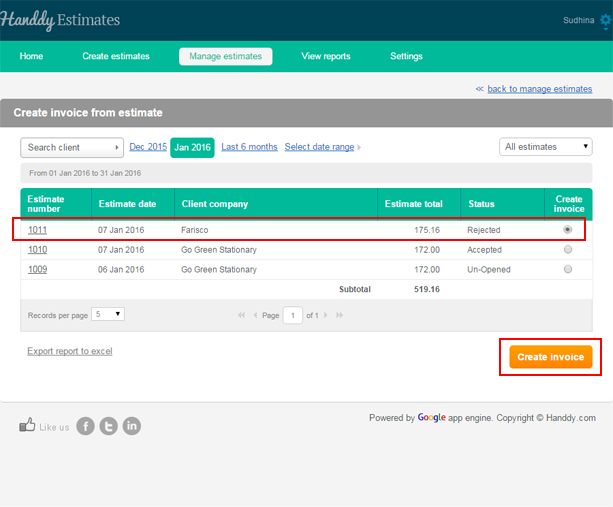
You can view estimates through time period option or ‘Search client’ option
From the list select the estimate that you wish to change to invoice.
Click ‘Create invoice’ button
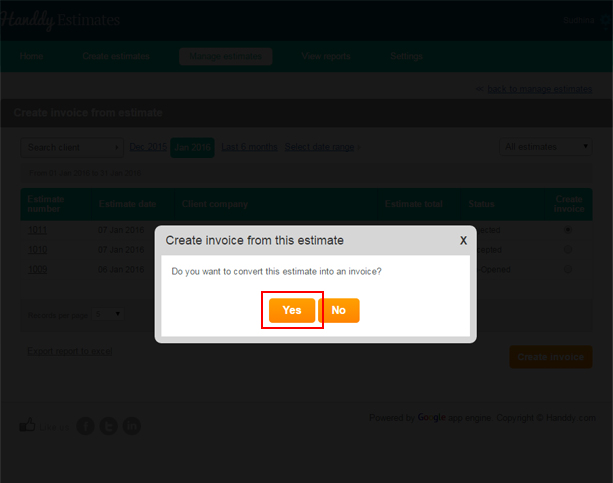
A dialogue box opens up asking if you wish to convert the selected estimate to invoice.
Click on ‘Yes’ option
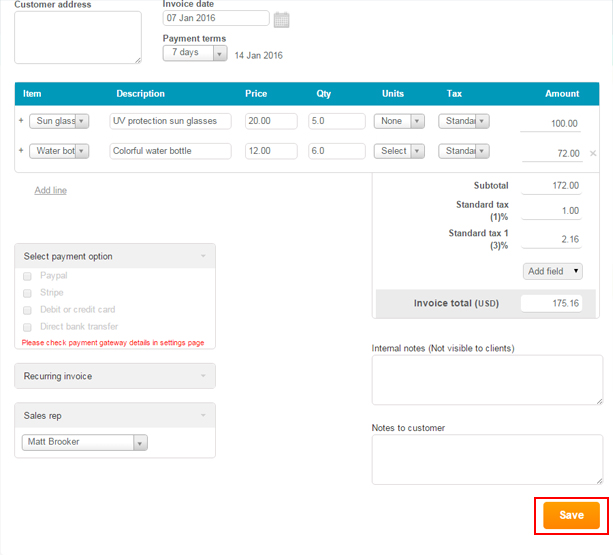
Estimate will be created as invoice
Click save button.
How do I void an estimate?
- Go to ‘Manage Estimate’, >> ‘Estimate Action’, >> ‘Void Estimate’.
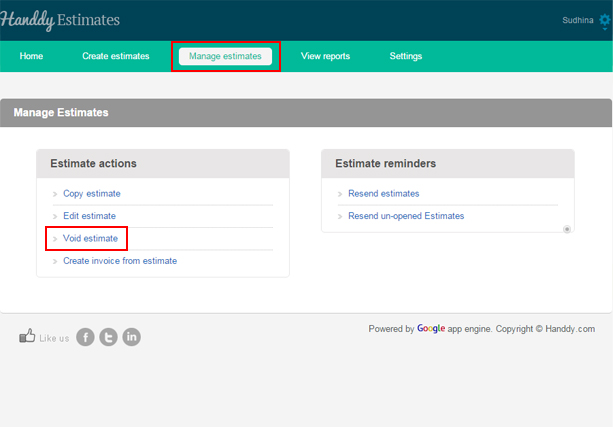
- List of estimates that you created will be displayed
- From the list select the estimate that you wish to void
- Click ‘Void’ button
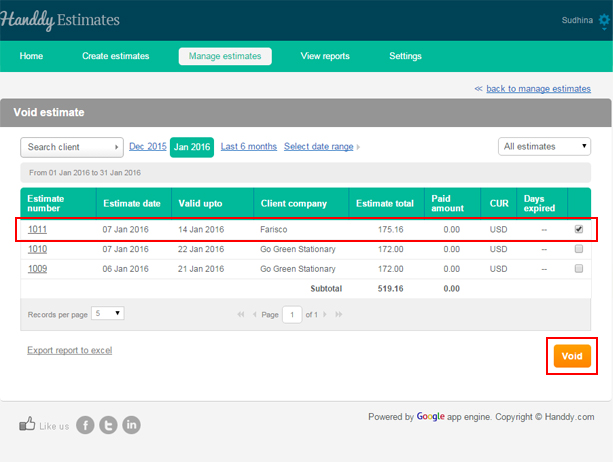
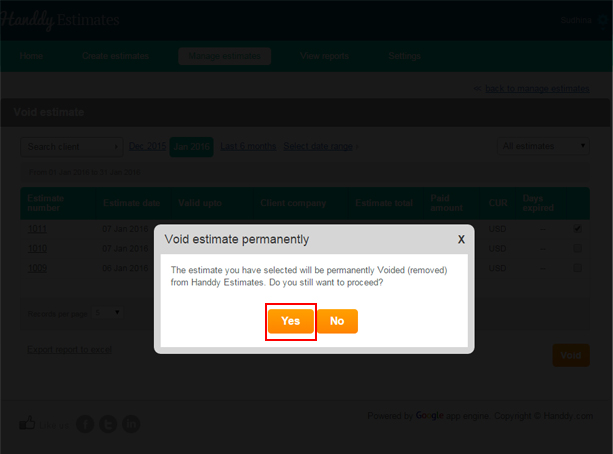
- A dialogue box opens up asking if you wish to permanently remove the selected estimate from Handdy Estimates
- Click on ‘Yes’ option
- You will get a message saying that your estimate has been successfully voided.
- By clicking on ‘Export report to excel’ option, you can export this report on Excel.
- This is how your report will look like on Excel.
How do I copy an estimate?
- Go to Manage Estimate>> Estimate action >> Copy Estimate
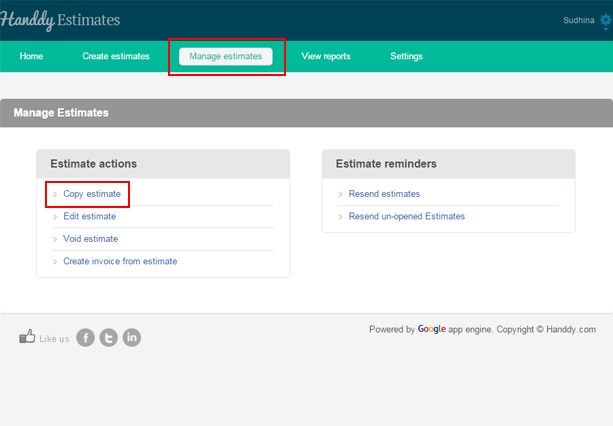
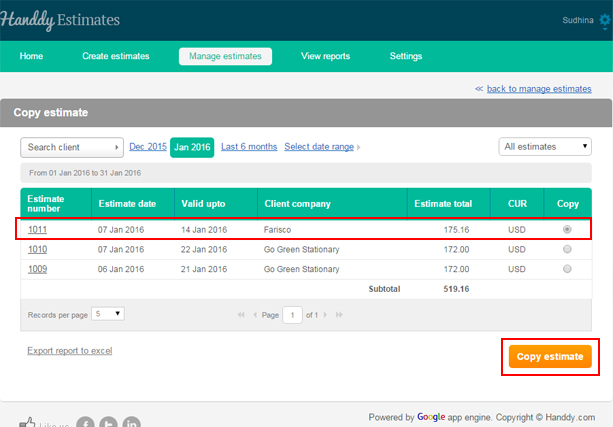
- List of estimates that you created will be displayed
- You can view estimates through time period option or ‘Search client’ option
- In the ‘Copy’ section, select the particular estimate that you wish to copy. Then select ‘Copy Estimate’ button
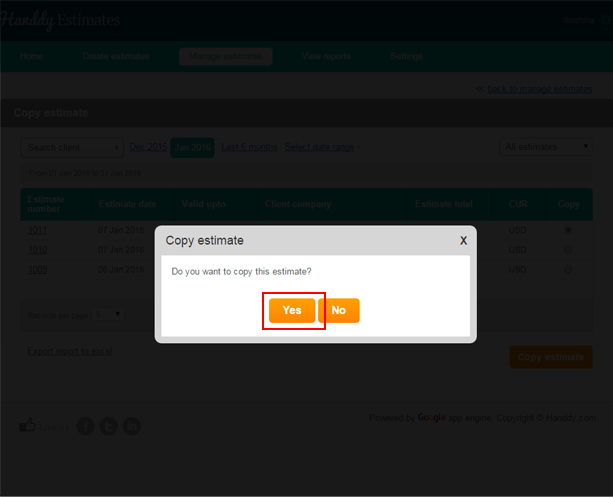
- You will see a message asking if you wish to copy that estimate. Click ‘Yes’ option
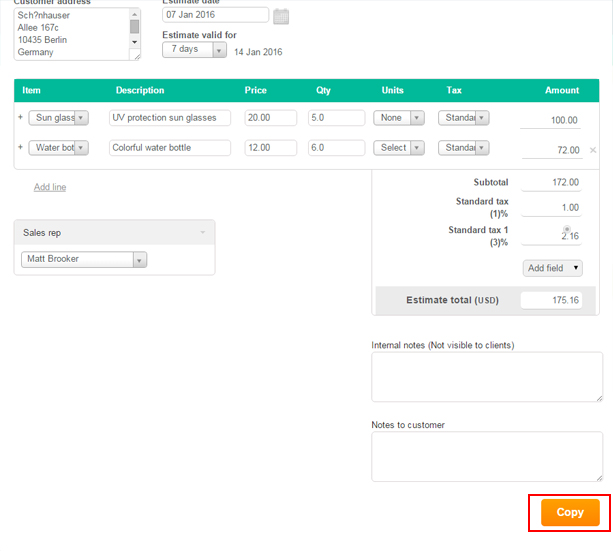
- The estimate that you have selected is copied with a new estimate number.
- You can make any changes necessary and send this new estimate.
How do I edit an estimate?
- Once you save your estimate you will see a page which shows how the estimate will display to the clients
- The edit button is visible and available on this page
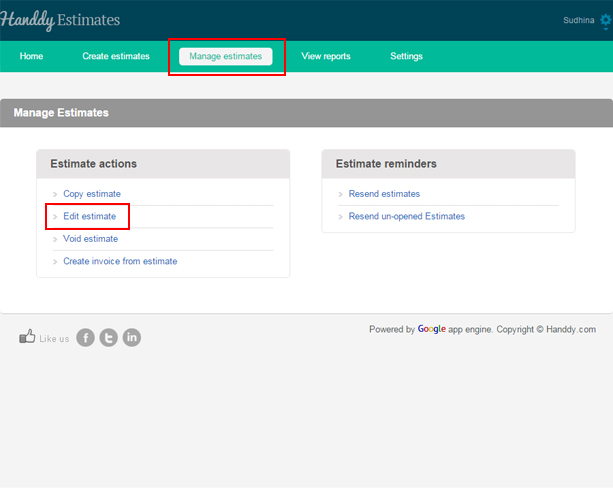
- To make changes to the saved estimate click on ‘Edit’ option that appears on the top left hand side of your screen.
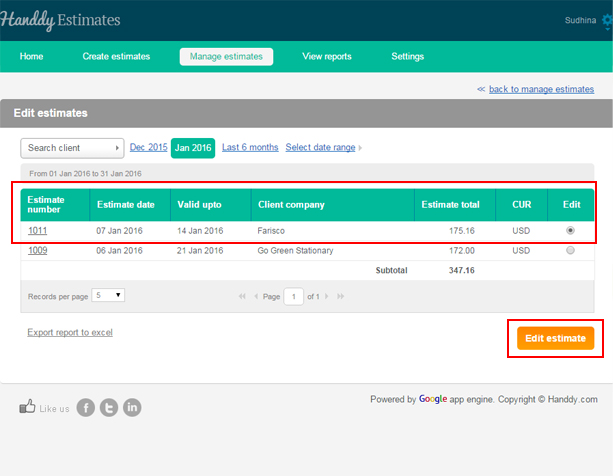
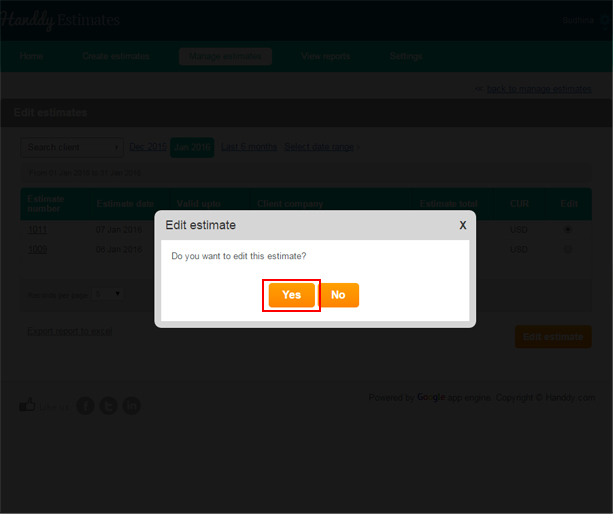
- Having made the necessary changes, click on ‘Update’ option.